Create your bibliography with Zotero
Zotero is a free, open-source bibliographic management program. It allows you to save bibliographic references and publications in PDF format, organize them and generate an automatic bibliography in word processing software.
There’s also a useful browser extension that lets you add a reference and its associated document with a single click.
The software is easy to use, but here are two tips on how to create a bibliography, store and synchronize a lot of data on a server, and back-up your library.
Tip n°1: Synchronization with a server
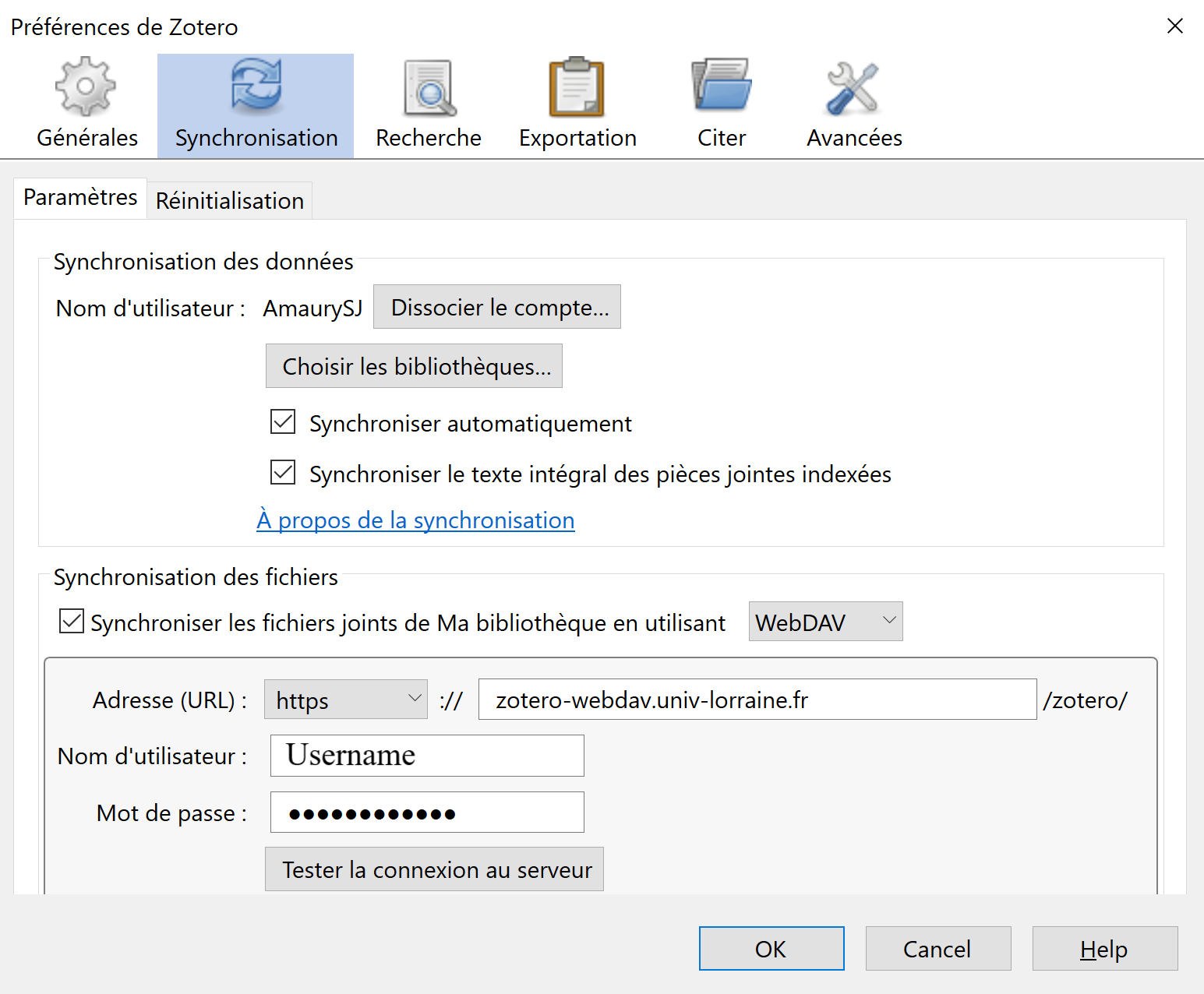
We can store our bibliography online on a specific server, to increase the size of our storage space. For example, the University of Lorraine, where our research is carried out, has an online WebDAV server.
Click on the Edit menu in Zotero, then on
Preferences > Synchronization.You need to have an account, so enter your login details.
Once synchronized, choose the
WebDAVoption instead of Zotero.Then put in the URL address (https):
zotero-webdav.univ-lorraine.fr.Then the university identifier for the user name and password.
Tip n°2: Back-up your library
It’s a good idea to back up your library in the case of connection problems or data loss.
In Zotero’s Edit menu, go to
Preferences > Advanced > Files and folders.Click on
Open data directoryto locate the data, then close Zotero.You can now copy all your files and folders to a USB key, server or other storage device.
Then, to restore your library from these files on another computer, for example, Zotero offers a simple import procedure.